Paginated JSON Forms
Description
For large forms, you can divide the JSON Form into multiple logical pages (a "Wizard" style layout) using Page containers and Javascript navigation methods.
Overview
When you have a large JSON Form, it is often desirable to divide the form into multiple logical pages.

Creating Pages
In order to create a Paginated form, you wrap the controls for each page in a Page container.
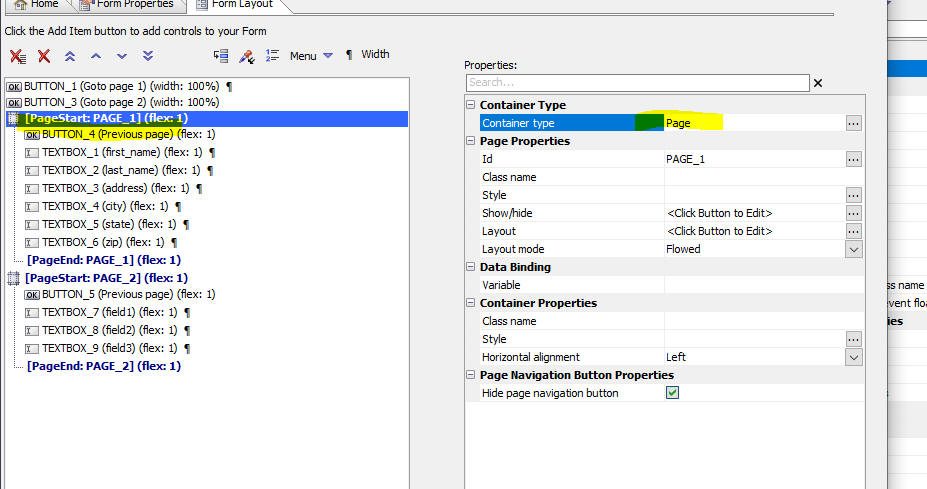
Navigation
When the JSON Form is rendered, default page navigation buttons will be shown.
If you want full control over the page navigation buttons, turn off the default page navigation buttons (by checking the Hide page navigation button property).
You can then add your own buttons to the form (by selecting buttons from the Pre-defined controls section when you click the Add item button).
The Javascript for your buttons can use the following methods:
- this.navigate('page-in','id_of_page_container');
For example: this.navigate('page-in','PAGE_2');
- this.navigate('page-back');
Navigates to the previous page.
- this.navigate('page-top');
Navigates to the first page.
Videos and Examples
How to Create Paginated Forms
When you have a large JSON Form it is often desirable to divide the form into multiple logical pages. In this video we show how a form can be divided into multiple pages.
See Also